
📥 Get Your Free Smart Guide from
The MacWhisperer
When window management on the iPad isn’t fully understood, it’s easy to keep multitasking the hard way — constantly swiping between apps, losing track of open windows, working in full-screen mode when you need multiple apps side by side, struggling to resize or arrange windows, and missing the built-in tools that can make your iPad feel more like a real computer. Without a simple walkthrough, powerful features like Stage Manager, Windowed Apps, traffic lights, split-screen layouts, the Dock, multiple app windows, the menu bar, and Slide Over can easily get overlooked.
This FREE Smart Guide from The MacWhisperer walks you through Window Management on the iPad step by step, so you can stop treating your iPad like a one-app-at-a-time device and start using it as a smarter, more flexible, more productive workspace. It covers practical multitasking features every iPad user should know, including choosing the right window mode, arranging apps with Stage Manager, resizing floating windows, mastering the traffic lights, organizing your Dock, opening multiple windows, using the menu bar, and keeping key apps ready with Slide Over.
Inside, you’ll learn how to:
🪟 Understand the three iPad window modes — Full Screen Apps, Stage Manager, and Windowed Apps — so you can choose the right setup for the task at hand
🧠 Know when to use each mode whether you want simple focus, organized multitasking, or a full desktop-style workspace
📚 Use Stage Manager to work with multiple apps and windows at once while switching between app stacks on the left side of the screen
➕ Add apps to your current workspace by dragging them into Stage Manager so you can manage multiple tasks simultaneously
🖥️ Use Windowed Apps mode to float, overlap, move, and resize windows just like you would on a Mac
🎛️ Switch between Full Screen, Windowed Apps, and Stage Manager from Control Center when you want to change your multitasking setup quickly
↔️ Resize and reposition windows by dragging the header bar, edges, or corner handles to create the workspace that fits you best
🟢 Master the traffic lights so you understand what the red, orange, and green window buttons actually do on iPad
📐 Use the traffic light menu to tile windows side by side, stack windows top and bottom, or arrange multiple apps on the screen
🧩 Work with three apps at once by choosing window slots and arranging your screen for more serious multitasking
🚢 Organize your Dock so your most-used apps, recent apps, folders, and App Library are easier to access without constantly returning to the Home Screen
📁 Add frequently used folders to the Dock for faster access to important files, projects, and resources
📬 Open multiple windows in supported apps like Mail, Notes, Pages, and Numbers so different messages, documents, or notes can stay visible at the same time
🔍 Show all windows for an app to get a bird’s-eye view of everything open and quickly jump to the window you need
🧭 Use the iPad menu bar to access hidden app commands, including File, Edit, View, Window, and Help options
❓ Use the Help menu to search for what you’re trying to do and jump directly to the matching feature
🔥 Power Tip: Use Slide Over to keep a frequently used app tucked at the edge of your screen — perfect for Messages, Music, or any app you want nearby but not constantly in the way. Just swipe it in when you need it, then tuck it away again when you’re done.
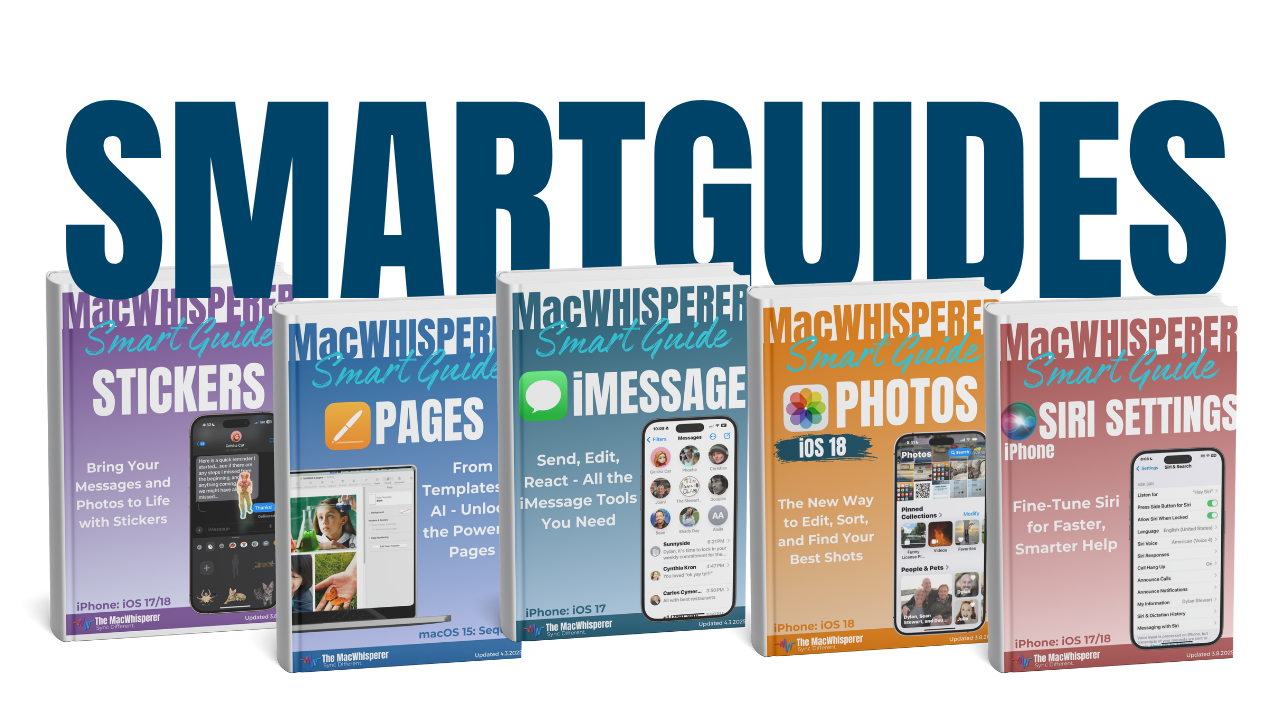

If you’re new to The MacWhisperer, we’ll also send you a one-time welcome email with helpful info and tips. If you’ve been here before, you’re all set—just enjoy the guide!
Let’s turn everyday tools into extraordinary productivity!