
📥 Get Your Free Smart Guide from
The MacWhisperer
When you don’t know the hidden gestures and shortcuts built into your iPhone, it’s easy to keep doing things the slow way — tapping through menus, struggling to place the cursor exactly where you want it, missing faster ways to switch apps, forgetting how to reach the top of the screen, or overlooking simple tools like Control Center, Notifications, Apple Pay, accessibility shortcuts, and one-handed navigation.
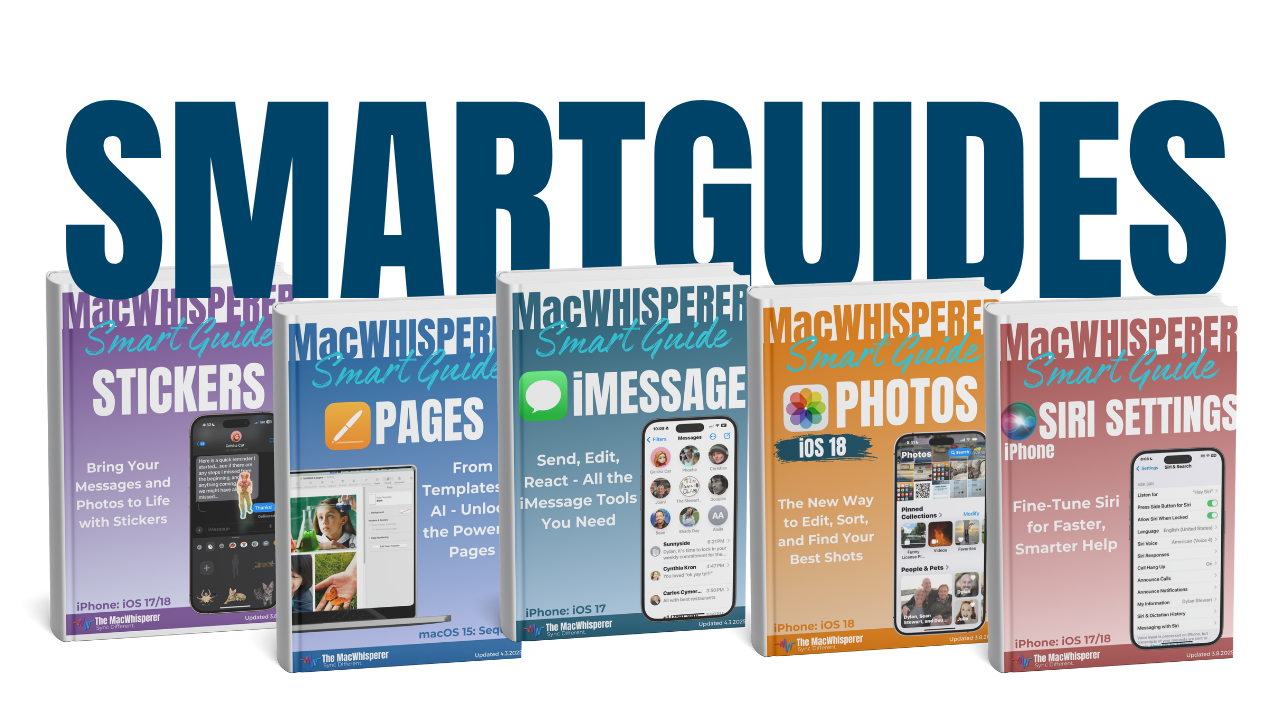
This FREE Smart Guide from The MacWhisperer walks you through the iPhone gestures and shortcuts Apple built in but never really explained, so you can stop poking around and start using your iPhone with more speed, confidence, and control.
Presented as a simple guided tour across your iPhone, this Smart Guide helps you master the small moves that make a big difference — from the side button to the home bar, from keyboard tricks to swipe gestures, and even a clever two-handed bonus tip that makes selecting and moving items feel like magic.
Inside, you’ll learn how to:
🔘 Use the side button six different ways — including locking your iPhone, activating Siri, using Apple Pay, triggering accessibility shortcuts, taking screenshots, and restarting your device
🏠 Master the home bar so you can return home, open Search, switch between apps, reach the top of the screen, and even type to Siri faster
⌨️ Control your cursor with precision so editing text feels easier and less frustrating
📝 Double-tap and triple-tap to select text instead of dragging handles around the screen
🎯 Turn your keyboard into a trackpad for faster, more accurate cursor placement
🔔 Swipe down for Notifications so you never miss important alerts, reminders, messages, or updates
🎛️ Open and customize Control Center so your most-used controls are always just a swipe away
👆 Understand the top-screen swipe gestures and know exactly which corner does what
🙌 Use two-finger selection to quickly select multiple messages, emails, notes, or list items
📚 Grab a stack of items so you can collect multiple things at once instead of moving them one by one
🔁 Drag between apps using multi-touch gestures to move content more naturally across your iPhone
🔥 Power Tip: Use two hands to select, stack, and drag items between apps — one of the most overlooked iPhone gestures that can instantly make your phone feel smarter, faster, and more fun to use.

If you’re new to The MacWhisperer, we’ll also send you a one-time welcome email with helpful info and tips. If you’ve been here before, you’re all set—just enjoy the guide!
Let’s turn everyday tools into extraordinary productivity!