
📥 Get Your Free Smart Guide from
The MacWhisperer
When Safari on the Mac isn’t fully understood, it’s easy to keep browsing the hard way — leaving too many tabs open, losing track of downloads, searching Google before typing a website address, ignoring the Favorites Bar, missing useful Reader Mode tools, and letting website notifications create unnecessary distractions. Without a simple walkthrough, powerful Safari features like custom settings, smarter downloads, Reading List, bookmarks, Favorites folders, pinned tabs, tab groups, Reader Mode, website translation, and keyboard shortcuts can easily get overlooked.
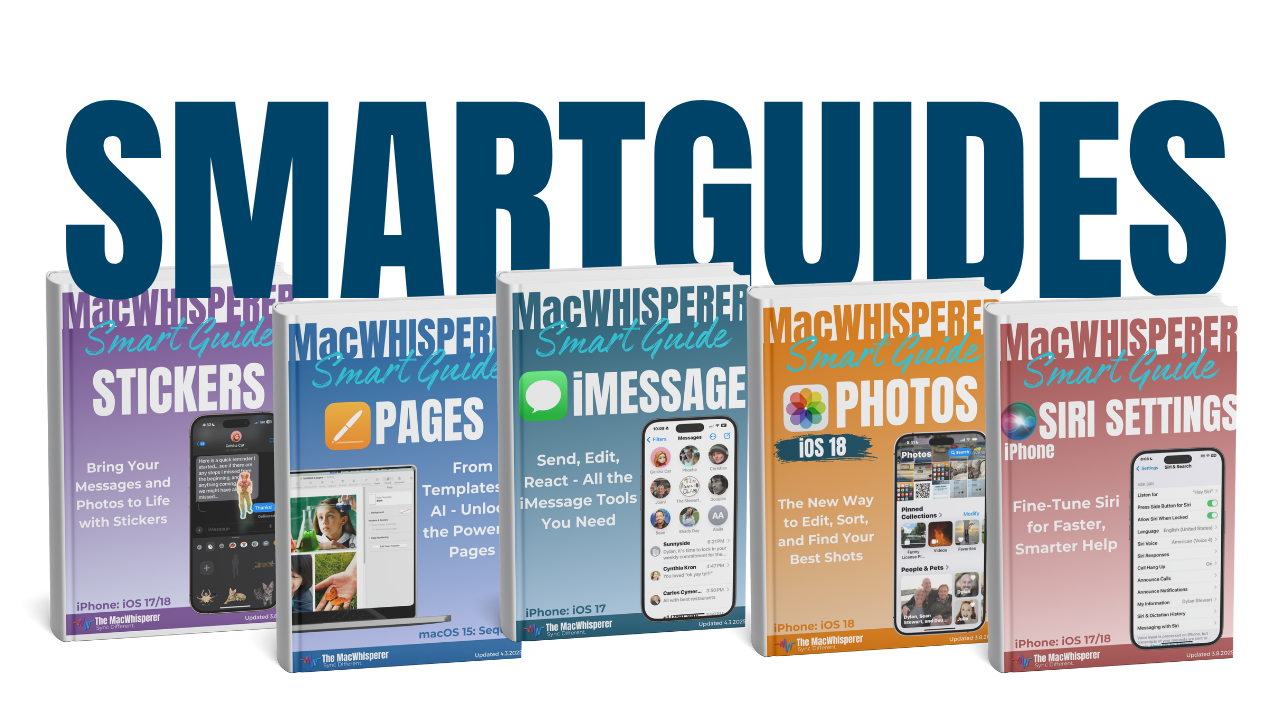
This FREE SmartGuide from The MacWhisperer walks you through Safari on the Mac step by step, so you can stop treating Safari like “just another browser” and start using it as a cleaner, smarter, more organized way to browse the web. It covers practical Safari features every Mac user should know, including setting Safari as your default browser, choosing where downloads go, managing website permissions, using the address bar more efficiently, saving articles for later, organizing bookmarks, managing tabs, and speeding up your workflow with Safari keyboard shortcuts.
Inside, you’ll learn how to:
🧭 Set Safari as your default browser so links from emails, messages, and websites open in Safari instead of another browser
⚙️ Adjust key Safari settings so new windows, new tabs, history, downloads, and website behavior work the way you want
📂 Choose where downloads save so you always know where your files go after you download them
⬇️ Keep your download list visible so you can quickly reopen recent downloads or locate them in Finder
🔔 Turn off unnecessary website notifications to reduce distractions and avoid fake alert scams
🔍 Use the Safari address bar as both a website bar and search bar so you can get where you’re going faster
📖 Turn on Reader Mode to remove ads, clutter, and distractions from articles for a cleaner reading experience
🌎 Translate webpages directly inside Safari so you can read content in different languages with one click
🛠️ Adjust website-specific settings for Reader Mode, content blockers, autoplay, pop-ups, camera, microphone, and more
📌 Save pages quickly using the address bar’s plus button for bookmarks or Reading List
📚 Use Reading List to save articles for later and make them easier to read across your Apple devices
⭐ Organize bookmarks and clean up your Favorites Bar so your most-used websites are easier to find
🗂️ Use the Five Folder Fix to group bookmarks into simple categories like finance, bills, entertainment, research, or shopping
🚀 Open entire bookmark folders in new tabs so you can launch a full set of related websites at once
🪟 Use separate Safari windows to keep different tasks or projects from turning into one giant tab mess
📍 Pin tabs for websites you use constantly, like email, calendars, banking, news, or productivity tools
🧩 Create Tab Groups to save a whole collection of websites for a project and return to them anytime
⌨️ Use Safari keyboard shortcuts to open settings, jump to the address bar, create new tabs, open new windows, close windows, find words on a page, zoom in and out, and move between tabs faster
🔥 Power Tip: Use bookmark folders, pinned tabs, and Tab Groups together to turn Safari into a clean, organized command center — perfect for research, bills, shopping, travel planning, work projects, and daily browsing.

If you’re new to The MacWhisperer, we’ll also send you a one-time welcome email with helpful info and tips. If you’ve been here before, you’re all set—just enjoy the guide!
Let’s turn everyday tools into extraordinary productivity!